Git Multi-Account Management Without Identity Mix-Ups
As AI coding gets stronger, it becomes easy to maintain more repositories. Those repositories may also belong to different GitHub accounts—personal and company accounts, for example—or even to GitLab.
1. What goes wrong?
Suppose you have two repositories:
Repository A → https://github.com/userA/repoA.git → belongs to personal account userA
Repository B → https://github.com/company/repoB.git → requires company account userB
After pushing repository A, you try to push repository B and get a “permission denied” error. You remove userA’s credentials, sign in as userB, and repository B pushes successfully—but now repository A fails. Worse, the push succeeds, only for you to discover that your personal author name and email were committed to the company repository.
The
user.emailauthor email and the identity used to access a remote during push are two unrelated mechanisms. We will return to this distinction later.
2. Do you really want to switch accounts every time?
That gets painful fast. Experienced Git users usually rely on two levels of Git configuration:
Global configuration:
~/.gitconfig

Repository-local configuration:
Repository A/.git/config
Repository B/.git/config
3. How Git configuration separates remote access and commit authorship
You only need to change the repository-local configuration, preferably through commands:
cd D:\code\repoA
git config user.name "Personal Name"
git config user.email "personal@example.com"
git config credential.https://github.com.username userA
cd D:\code\repoB
git config user.name "Company Name"
git config user.email "name@company.com"
git config credential.https://github.com.username userB
These values are written to each repository’s .git/config, so the two repositories do not interfere with each other.
Git commands run inside repository A automatically use Repository A/.git/config;
commands run inside repository B use Repository B/.git/config.
VS Code’s Source Control features call Git too, so they read the same configuration.
At the underlying Git level, each repository can therefore select its own author information and indicate a different remote-access identity.
Repository-local
.git/configtakes precedence over global~/.gitconfig.
4. What the three configuration commands do
1. The first two commands
These set the author name and email attached automatically when you run git commit:
git config user.name "Personal Name"
git config user.email "personal@example.com"
2. The third command
This tells the HTTPS credential helper which account to use for remote access.
For Repository A, use account userA when accessing a remote on github.com:
git config credential.https://github.com.username userA
For Repository B, use account userB:
git config credential.https://github.com.username userB
This assumes that the repository’s origin URL uses HTTPS and configures the account used for HTTPS remote access. It only selects the account. On Windows with Git for Windows, the first push will usually open a browser for authorization; after authorization succeeds, the credential is stored by Windows Credential Manager. If you have never changed the origin URL, it is the URL you used when cloning the repository.
5. What if the origin URL uses SSH?
1. Convert the SSH URL to HTTPS
cd D:\code\repoA
:: Show the current origin URL:
git remote get-url origin
:: If the SSH URL is git@github.com:path/repoA.git, run:
git remote set-url origin https://github.com/path/repoA.git
2. Or configure a different SSH private key for each repository
cd D:\code\repoA
:: Assume the private key is stored at %USERPROFILE%/.ssh/id_ed25519_userA:
git config core.sshCommand "ssh -o IdentitiesOnly=yes -i ~/.ssh/id_ed25519_userA"

cd D:\code\repoB
:: Omitted
GitHub and GitLab identify SSH access by the private key, not by an account name.
3. What if one origin has multiple URLs that require different identities?
For HTTPS URLs, you can put the account name directly in each URL. For SSH URLs, define a Host alias and private key in ~/.ssh/config, then replace the original host in the URL with that alias. This situation is uncommon enough that I will not expand on it here.
6. Why commit authorship and remote access must remain separate
GitHub and GitLab ask for an email address when you create an account, so it is easy to assume that:
git config user.email "name@example.com"
also selects the remote account used by push.
That assumption is wrong—I was confused by it too. These are two completely separate mechanisms:
Who wrote the code  (author name and email)
Who may push it     (remote-access identity)
For example, you may maintain a company project through your personal GitHub account while commits must use your corporate email. That would be impossible if the two identities could not be configured independently.
7. What is global configuration for?
The author commands above modify repository-local .git/config. Add --global, and they write to global ~/.gitconfig instead:
git config --global user.name "Default Name"
git config --global user.email "default@example.com"
A new Repository C without local author settings will then inherit the global values. With multiple Git accounts, that convenience can also make identity mistakes easier.
8. Is there a more convenient native approach?
Per-repository configuration is explicit and easy to reason about, but every new local repository has to be configured again.
Git has another option: includeIf.
1. Group repositories that need different identities under different parent directories
For example:
D:/github-userA/
  └─Repository A
D:/github-userB/
  └─Repository B
2. Write an identity configuration under each parent directory
For github-userA:
git config --file "D:/github-userA/.gitconfig" user.name "Personal Name"
git config --file "D:/github-userA/.gitconfig" user.email "personal@example.com"
git config --file "D:/github-userA/.gitconfig" credential.https://github.com.username userA
git config --file "D:/github-userA/.gitconfig" core.sshCommand "ssh -o IdentitiesOnly=yes -i ~/.ssh/id_ed25519_personal"
For github-userB:
git config --file "D:/github-userB/.gitconfig" user.name "Company Name"
git config --file "D:/github-userB/.gitconfig" user.email "name@company.com"
git config --file "D:/github-userB/.gitconfig" credential.https://github.com.username userB
git config --file "D:/github-userB/.gitconfig" core.sshCommand "ssh -o IdentitiesOnly=yes -i ~/.ssh/id_ed25519_company"
These examples also configure sshCommand and an SSH key, which matters when the origin URL uses SSH.
Replace the directory paths, SSH key paths, user.name, user.email, userA, and userB with your own values.
An SSH origin uses
core.sshCommand; an HTTPS origin usescredential.*. If you have never changed the origin URL, it is the URL you used when cloning the repository.
3. Attach the files conditionally from the global configuration
Conditionally include D:/github-userA/.gitconfig and D:/github-userB/.gitconfig from global ~/.gitconfig:
git config --global "includeIf.gitdir/i:D:/github-userA/.path" "D:/github-userA/.gitconfig"
git config --global "includeIf.gitdir/i:D:/github-userB/.path" "D:/github-userB/.gitconfig"
That completes the setup.
Git commands run in a repository under D:/github-userA will automatically use D:/github-userA/.gitconfig;
repositories under D:/github-userB use the other file.
The same applies when Git is invoked through VS Code.
9. What if that still feels like too much configuration?
My solution is Swaw Kit Git, whose entry template is Favorites/template.git1.cmd.
Each identity becomes its own Git entry command:
gitme.cmd      personal identity
gitwk.cmd      company identity
gitme2.cmd     second personal identity
Use the gitme identity in repository A:
cd repoA/
gitme commit -m "update"
gitme push
Use the gitwk identity in repository B:
cd repoB/
gitwk push
Launch VS Code or Cursor with the gitwk identity:
cd repoB/
gitwk .code
gitwk .cursor
Persist the identity bound to gitwk into repository B’s .git/config:
cd repoB/
gitwk .sync
:: You can remove the managed values later:
gitwk .sync --clear
The tool injects identity information through environment variables. It does not affect other processes or windows, and it does not silently change any Git configuration file unless you explicitly run a command that does so, such as gitme .sync.
Commands beginning with a dot, such as .code and .cursor, are custom commands. Commands without a leading dot, such as commit and push, are forwarded to git.exe after the identity has been validated and added to the environment.
The behavior is deliberately stubborn:
an operation run through gitme always uses the identity bound in gitme.cmd;
an operation run through gitwk always uses the identity bound in gitwk.cmd.
The only exception is an explicit override, for example:
gitme commit --author=...
If the tool cannot determine the identity unambiguously, it fails instead of continuing.
10. Swaw Kit Git in action
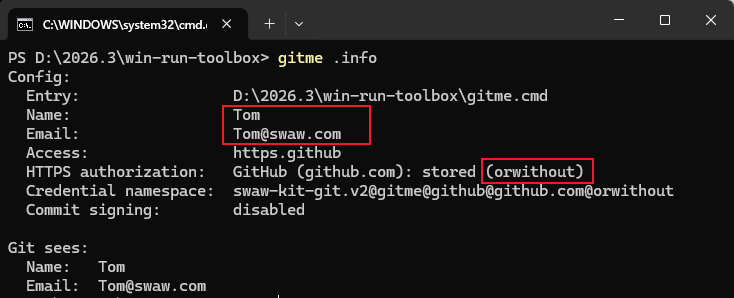
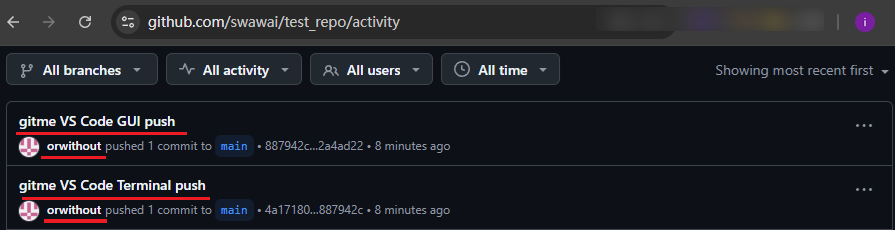
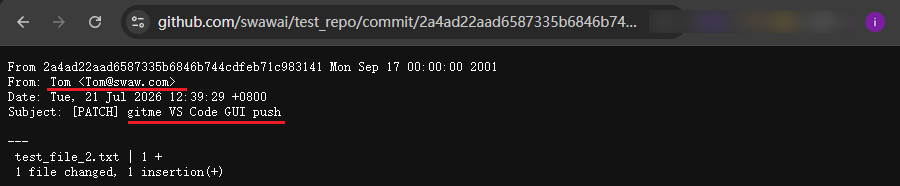
My gitme.cmd entry binds this identity:
Commit author: Tom
Author email: Tom@swaw.com
Remote-access account: orwithout (HTTPS, github.com)
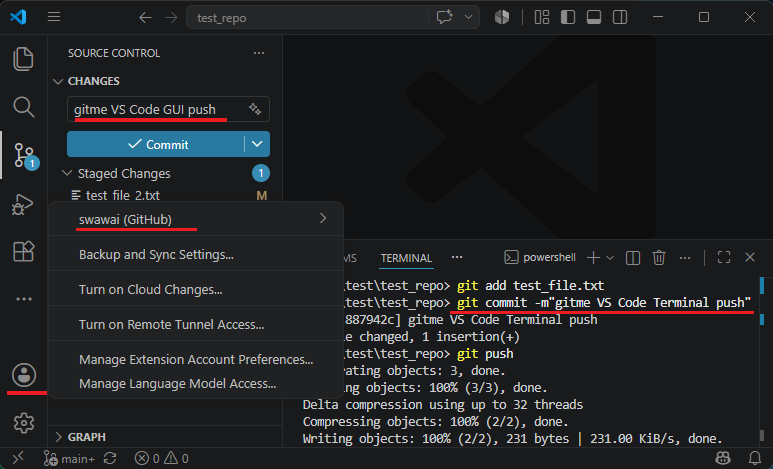
The account shown in VS Code is:
swawai (GitHub)
First, run gitme .info to inspect the bound identity:
Use the gitme identity to launch VS Code and open a test repository:
gitme .code D:\test\test_repo
Create one commit and push once through the VS Code graphical interface, then repeat through the integrated terminal. The account displayed by VS Code remains swawai:
Open GitHub and check the push account and commit author. They match the values bound in gitme.cmd exactly, unaffected by the account signed in to VS Code:
11. The tool is open source and takes three steps to use
You still need to install Git itself—Git for Windows—separately.
1. Clone the repository
git clone https://github.com/swawai/swaw-kit
cd swaw-kit
2. Create an entry command for an identity
This example creates gitme2:
copy .\Favorites\template.git1.cmd .\gitme2.cmd
Open the copied gitme2.cmd and change the three required values:
:: Commit author:
set "GIT_ID_NAME=Your Name"
set "GIT_ID_EMAIL=you@example.com"

:: Remote-access method (this example uses HTTPS GitHub mode):
set "GIT_ID_ACCESS=https.github:host=github.com;account=your-account"
Remote access supports three modes: https.github:, https.gitlab:, and ssh:. See the comments in gitme2.cmd when configuring one. Before first use in either https.* mode, run:
gitme2 .https login
This opens an interactive browser flow for one-time authorization.
That is all the identity setup you need. Run:
gitme2 --help
to see every available command.
3. Add the repository to your user PATH
To run gitme, gitme2, and other entries directly from any terminal or from Win + R, double-click this file in the repository root:
PathHereAdd.cmd
It adds the directory containing the script—the repository root—to your user PATH. To undo the change, run PathHereRemove.cmd.
Is modifying the user PATH this way safe? See Run Custom Commands from Win + R.
12. Summary
The hard part of multi-account Git is not the number of accounts. It is the number of places that can change identity: global configuration, repository configuration, the credential manager, SSH keys, and even editors such as VS Code. Native Git configuration can solve the problem completely. But as repositories and identities multiply, you start asking: Have I configured this repository? Where is its current identity coming from?
Swaw Kit Git collapses that hidden state into dedicated, named entry commands:
gitme is your personal identity; gitwk is your work identity. The identity is visible before the command runs. If you dislike those names, rename the commands however you want.
In Codex’s words:
For a person, the entry command is a memorable interface. For an agent, it is an explicit execution contract with predictable failure. Both follow the same primary path, so there is no second set of identity rules to maintain.
Repository: https://github.com/swawai/swaw-kit
While debugging Swaw Kit Git, I discovered a subtle VS Code issue that leaks environment variables between windows. The next article explains the behavior and how I work around it.